- Integrations
- Hookshot Proteges
Deploy production agents your team can trust and audit
Overview
Hookshot Proteges connects Linear to governed AI agents so issue work can start, be inspected, and be written back without a bot acting on sight. Teams use it when Linear should trigger an agent, when an agent should read issue state before deciding, and when writes should wait for an explicit rule.
How it works
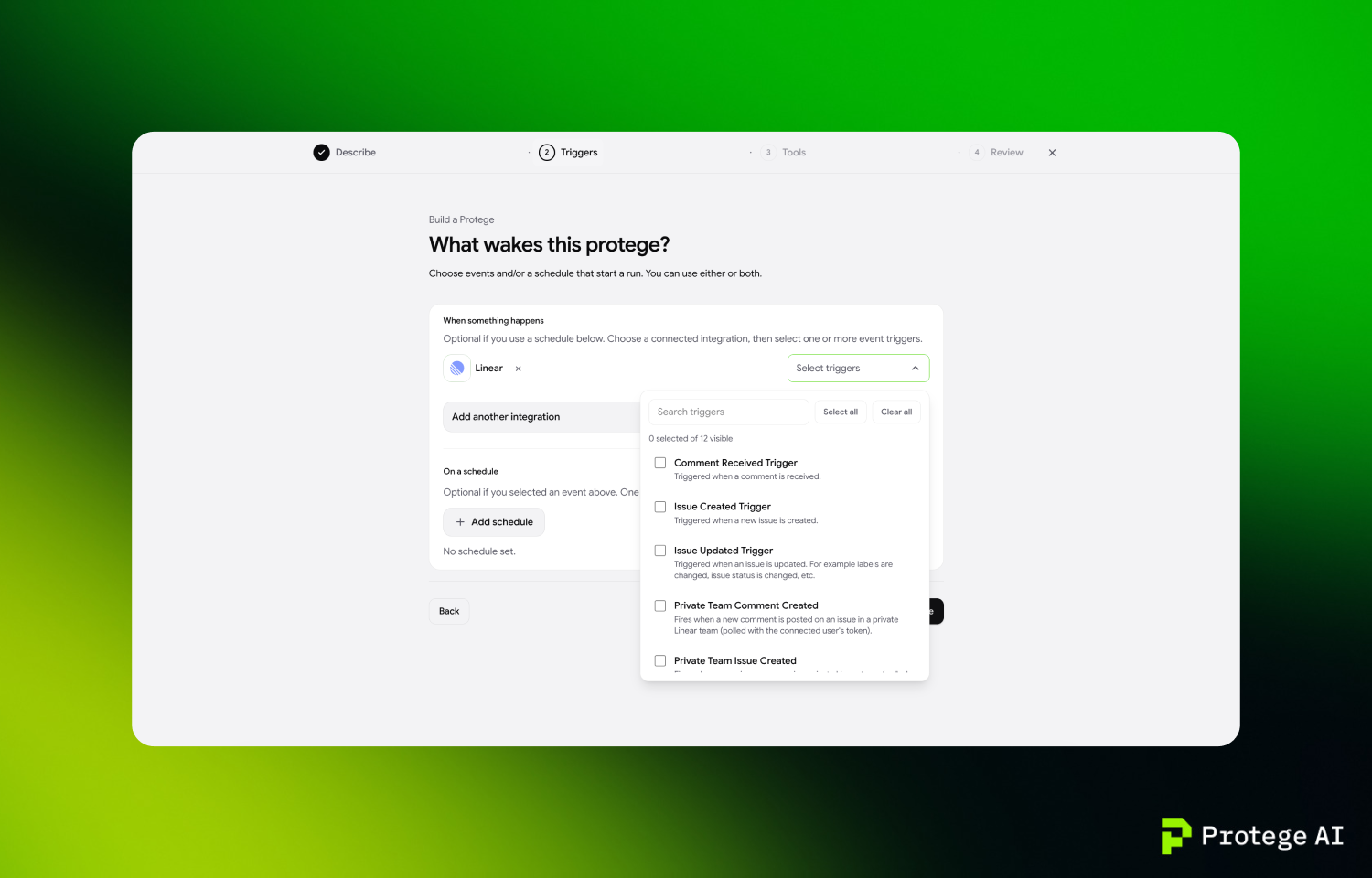
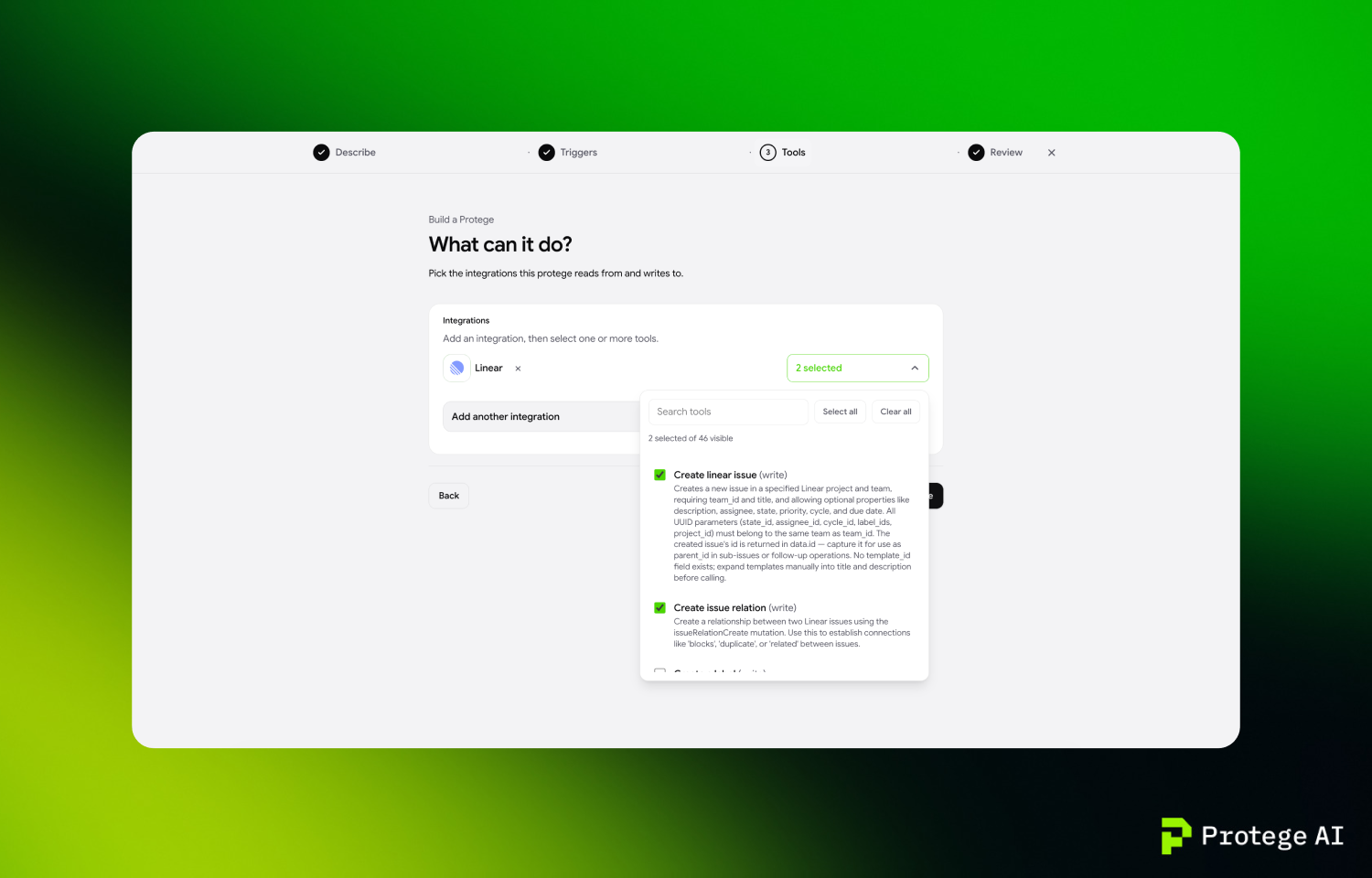
Connect Linear over OAuth and treat it as a trigger, a tool, or both. Trigger access lets a Protege start when something happens in Linear: a new issue, an update, a status change, or a comment, scoped to the team or project you choose. Tool access lets the same Protege read issues, projects, and comments so it can decide whether to run, then create or update issues, add comments, or change status only when your rules allow writes.
Trigger access and tool access are separate. A workspace can receive Linear events without granting write tools, or grant read tools without turning on a live trigger. Each tool call is labeled read or write, and writes can be previewed against live issues before they change anything. When a Protege does write, it acts as the Hookshot app, not as the teammate who connected it.
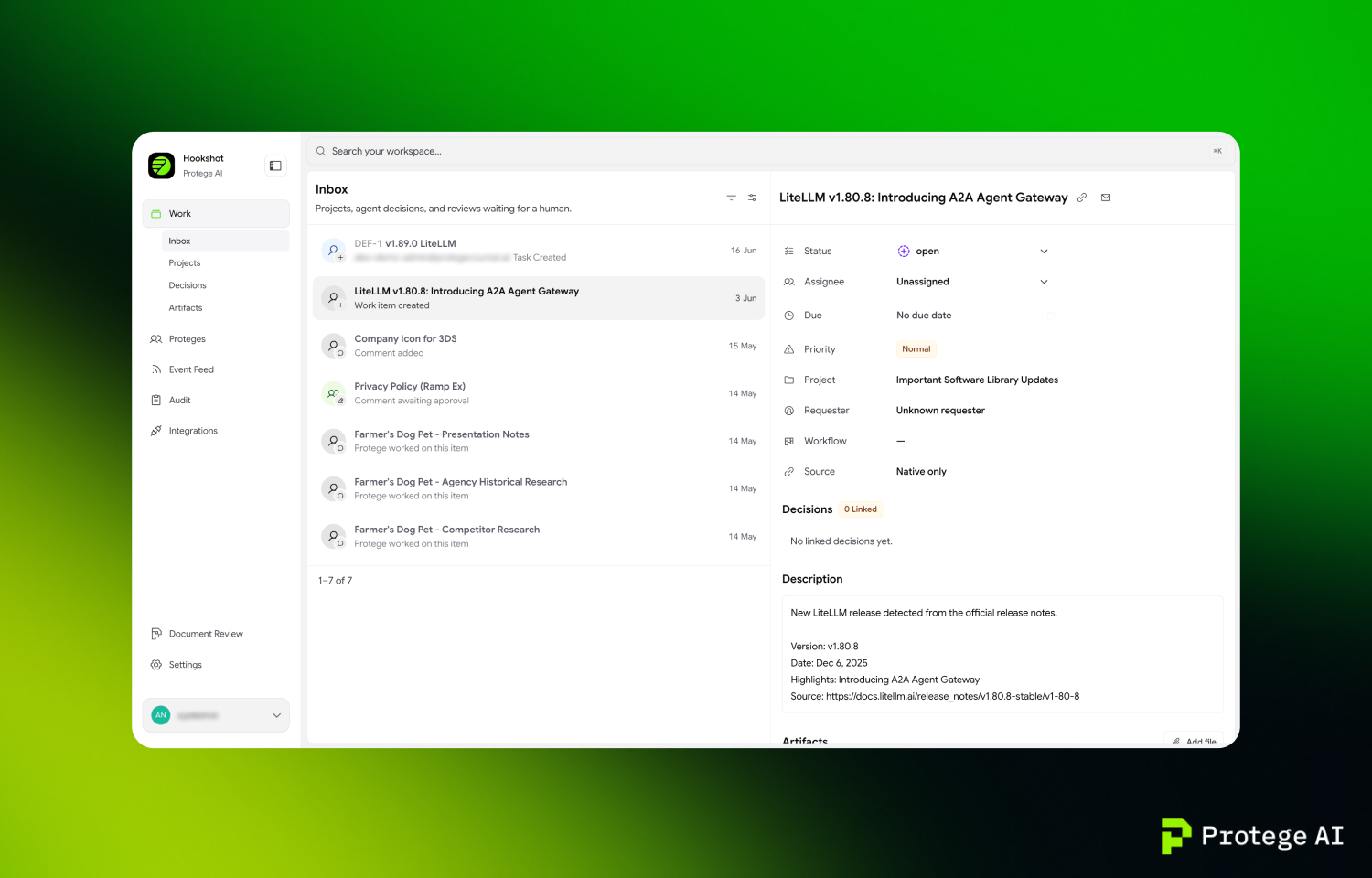
Every inbound Linear event is recorded in an immutable Event Feed. Every decision is logged, including the cases where the Protege chose not to run. Operators can open the run, see the input, the tools used, and the outcome, and attach a Teaching Note so the next pass is tighter. Linear sits alongside Slack, GitHub, Jira, and Asana in the same workspace, so one Protege can watch Linear and report somewhere else, or the reverse.
Configure
A Linear workspace admin needs to complete the first connection, since the OAuth consent is workspace-scoped. In Hookshot, open Integrations, select Linear, and finish the OAuth flow at https://www.tryprotege.com/hookshot. Choose a team connection for production Proteges that should keep running if someone leaves, or a personal connection only when the agent must act as a specific user.
After the connection shows as connected, review Trigger Access and Tool Access separately and keep both scoped to the teams or projects the workflow owner can actually review. Create or edit a Protege, attach Linear as the trigger, the tool, or both, and run a test issue through Event Feed and Audit before you enable it. To disconnect later, revoke the app in Linear under Settings → Applications, or remove the connection from Hookshot Integrations. Setup notes live with the rest of the integration docs at https://docs.tryprotege.com/integrations.


